OpenClaw's Five Ways to Browse the Web: From Search API to Taking Over Your Browser
Disclaimer: This post is machine-translated from the original Chinese article: https://ai-coding.wiselychen.com/openclaw-browser-five-modes-from-search-api-to-personal-browser/
The original work is written in Chinese; the English version is translated by AI.
Why You Need to Understand How Your AI Agent Goes Online
Most people’s first OpenClaw surprise: “Wait, it can browse the web?”
Their second question: “Hold on — how exactly? Is it using my accounts?”
That question matters more than you think.
Because OpenClaw “browsing the web” isn’t one thing — it’s five completely different architectures. Each has a wildly different capability range, security risk profile, and appropriate use case.
Not knowing which mode you’re using is like not knowing whether your car has airbags. Usually fine. When it’s not fine, it’s catastrophically not fine.
Layer 1: Search API — The Safest Way to Get Information
Tool: web_search
The lightest-weight mode. OpenClaw doesn’t open a browser, doesn’t visit any web page — it just calls a search engine API and gets back a list of “title + link + snippet” as plain text.
Like asking an assistant “look up XXX for me.” They Google it, read out the first few results. They didn’t click anything.
Supported search engines:
| Engine | Notable Feature | Free Tier |
|---|---|---|
| Brave Search | OpenClaw’s default first choice | 2,000/month |
| Perplexity | AI summaries + citations | Plan-dependent |
| Gemini | Google Search grounding | Plan-dependent |
| Grok (XAI) | Stronger on X/Twitter content | Plan-dependent |
| SearxNG | Self-hosted, free, unlimited | Unlimited |
| Tavily | Optimized for AI agents, cleaner results | Plan-dependent |
Auto-detection priority: Brave → Gemini → Perplexity → Grok
Configuration is straightforward — set the API key:
1
openclaw configure --section web
Security level: very low risk. Search API never touches your browser, can’t leak cookies, doesn’t log into anything. The only risk: your search queries are recorded by the search engine — same as when you Google something yourself.
Limitation: You only get search result snippets, not full page content. Need to read a complete article? Move to the next layer.
Layer 2: Web Fetch — Grab Web Pages Without a Browser
Tool: web_fetch
One step further: OpenClaw sends an actual HTTP request to fetch a page, then uses the Readability algorithm to extract the main text and convert it to markdown.
Like asking an assistant “summarize this article.” They open the page, copy the text, give you the important parts.
Technical details:
- Pure HTTP GET, no JavaScript execution
- Readability extraction (removes ads, nav bars)
- Can integrate Firecrawl to bypass anti-scraping (full browser rendering)
- 2MB download limit
- 15-minute cache
Security level: low risk. It’s an HTTP request, essentially the same as curl. Doesn’t carry your browser cookies, no login state.
Limitation: Can’t get JavaScript-rendered content. SPAs (single-page apps), pages behind login, dynamically loaded content — none of that works. For those cases, you need a real browser.
Layer 3: Managed Browser — The Agent’s Own Browser
Tool: Browser tool (managed mode)
This is where things change qualitatively. OpenClaw launches a completely isolated Chromium instance with its own user data directory — completely separate from your personal Chrome.
Key design decisions:
- Independent user data directory: Doesn’t touch your cookies, passwords, bookmarks, or extensions
- CDP port 18800: Deliberately avoids the developer-standard 9222 to prevent conflicts
- Orange color scheme: At a glance, you can tell which is the agent’s browser and which is yours
- Accessibility Tree Snapshot: Instead of screenshots (5MB+), uses a structured text tree (~50KB) — 100× more efficient
1
2
3
4
5
6
{
  "browser": {
    "defaultProfile": "openclaw",
    "headless": false
  }
}
How does Accessibility Tree work?
This is the biggest difference between OpenClaw and traditional RPA. Traditional approach: screenshot → visual model identifies button locations → click coordinates. OpenClaw’s approach:
- Converts the page into a structured text tree (like the DOM but more compact)
- Each interactive element gets a number:
ref="12" - AI reads the text tree, says “I want to click ref 12”
- Playwright maps ref 12 to the real DOM element and executes the click
50KB text tree vs 5MB screenshot — this isn’t just a bandwidth difference, it’s a reasoning speed and token cost difference.
Security level: medium. The agent has a real browser and can execute JavaScript, fill forms, click buttons. But because it’s a completely isolated fresh instance, it has none of your login state. The main risk is visiting a malicious site, but the blast radius is limited to that isolated browser.
Appropriate use cases: Crawling JavaScript-rendered public pages, automating forms (no login required), Web UI testing.
Pro Tip: Manual Login + Agent Takeover
Many people don’t realize: Managed Browser supports a “hybrid” approach. Because headless: false opens a visible Chromium window, you can:
- Have the agent launch Managed Browser
- Manually log in to any service you need (Gmail, GitHub, enterprise backend) in that window
- Once logged in, let the agent take over
This is the sweet spot between Managed Browser and Extension Relay — you get the security of an isolated browser (not touching your main Chrome’s data), while still having login state. And because it’s isolated, even if the agent misbehaves, the blast radius is limited to that independent browser.
Compared to Extension Relay which hands over your entire main browser, this approach has significantly lower risk. Personally, for cases where I need login access but don’t want to use Extension Relay, this is what I do.
Layer 4: Remote CDP — The Browser in the Cloud
Tool: Browser tool (remote CDP mode)
Take Layer 3’s Managed Browser and move it to the cloud. OpenClaw connects via WebSocket to a remote Chromium (e.g., Browserless). Your local machine is completely untouched.
Security level: depends on how much you trust the cloud provider. Best for CI/CD automation testing, production scrapers, scenarios requiring horizontal scaling.
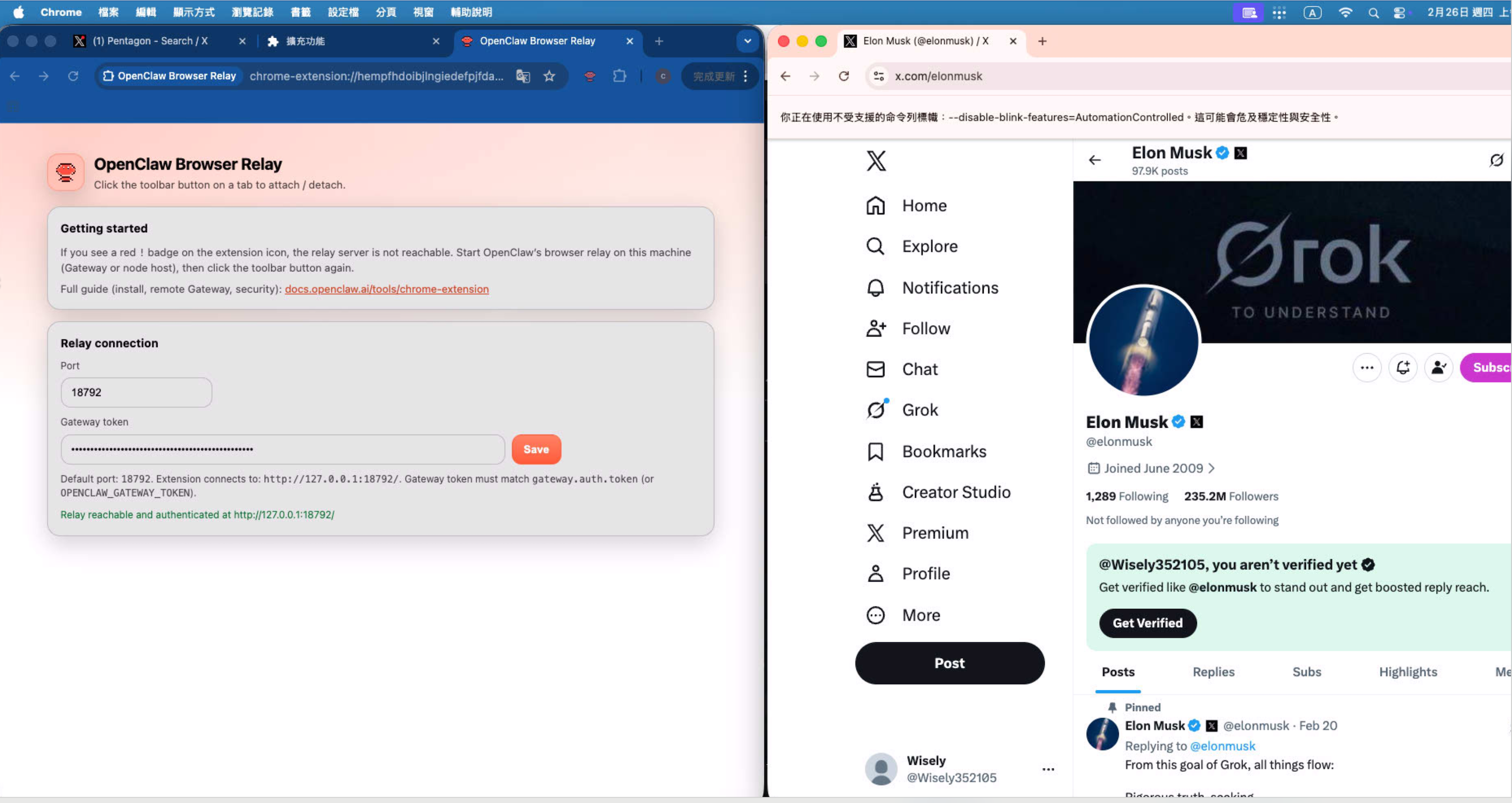
Layer 5: Extension Relay — Takeover of Your Browser
Tool: Browser tool (extension relay mode)
The most powerful mode. Also the most dangerous.
You install OpenClaw Browser Relay as a Chrome extension. OpenClaw can then directly operate the Chrome tabs you’re actively using. Gmail, GitHub, your enterprise backend, your banking — the agent can see and operate all of it.
OpenClaw’s own documentation says:
“Treat it like giving the model hands on your browser.”
This is not a metaphor. This is literal.
Everything you can do in your browser, the agent can do. Including:
- Reading your Gmail
- Operating your Google Calendar
- Executing operations in enterprise backends
- Accessing any SaaS service you’re logged into
Security level: very high risk. This is equivalent to handing your complete browser session to an AI. If the agent’s prompt gets hijacked with malicious instructions (Prompt Injection), it can theoretically execute any operation you’re capable of.
Appropriate use cases: Automated workflows that need access to logged-in services. I personally use it for Google Calendar and Google Sheets. But only when I fully trust the current agent configuration and the operating environment is controlled.
My recommendations:
- Use a dedicated Google account, not your main one
- Enable only when needed, disable when done
- Never use in environments with sensitive data
Bonus: WebMCP — A Future Sixth Mode
In February 2026, Google and Microsoft jointly released an early preview of WebMCP.
A completely different approach: instead of AI “operating” web pages, websites proactively “expose” structured tool interfaces to AI agents.
Like a restaurant that, rather than letting customers walk into the kitchen to find ingredients, provides a clear menu.
- Chrome 146 Canary already has a
WebMCP for testingexperimental flag - 89% improvement in token efficiency over screenshot approaches
- W3C standardization in progress
- Different layer from Anthropic’s MCP — WebMCP is a client-side protocol; MCP is a backend protocol
Still very early, but if this succeeds, it will fundamentally change how AI agents interact with websites.
How I Actually Use It
In my daily workflow, I use all five layers:
Daily default: Search API + Web Fetch
Looking up technical documentation, reading GitHub issues, finding Stack Overflow answers. These two layers cover 80% of web access needs at zero risk.
When I need to interact with a page: Managed Browser
Occasionally need to scrape JavaScript-rendered pages, or test a Web UI. Managed Browser, completely isolated from my personal browser.
When I need access to personal services: Extension Relay
Operating Google Calendar, Google Sheets, sending meeting invites. This is my most carefully managed mode, with these defensive layers:
- Dedicated Google account — not my main one
- Dedicated Mac Mini — not my primary work machine
- Disable when done — Extension Relay is not always-on
Even with all of this, I still periodically review that account’s activity logs.
If You’re Running OpenClaw on a VPS or VM
Many people run OpenClaw not on local machines but on VPS (DigitalOcean, Linode) or cloud VMs (AWS EC2, GCP Compute). The decision logic is completely different.
Core difference: VPS/VMs usually don’t have a desktop environment.
No GUI, no Chrome window for manual interaction. This eliminates several options:
| Mode | Works on VPS/VM | Reason |
|---|---|---|
| Search API | Yes | Pure API calls, no browser needed |
| Web Fetch | Yes | Pure HTTP requests, no browser needed |
| Managed Browser (headless) | Yes | Playwright headless mode needs no GUI |
| Managed Browser (manual login) | No | Requires GUI window for manual interaction |
| Remote CDP | Best fit | Designed for exactly this scenario |
| Extension Relay | No | Requires your local Chrome |
Best combination for VPS/VM:
1
2
3
Daily lookups → Search API + Web Fetch (zero risk)
Scraping public pages → Managed Browser headless (medium risk)
Full browser capability needed → Remote CDP connecting to Browserless (low risk)
Why Remote CDP is ideal on VPS?
You’re already not operating locally. The browser runs on a service like Browserless, completely isolated from your VPS. Even if the browser gets compromised, it can’t touch anything on your VPS.
What about logins?
The hardest problem in VPS scenarios. Without GUI, you can’t manually log in. Options:
- Login on local Managed Browser and export cookies — technically possible but painful
- Remote CDP with a pre-authenticated user data directory — requires maintaining your own Chromium profile
- Use Extension Relay on your local machine for login-required tasks — keep those tasks on the local machine; VPS handles login-free tasks only
I use option 3: separation of concerns. VPS handles scheduled tasks (scraping, data processing). Login-required operations stay on the Mac Mini with Extension Relay. Don’t try to solve everything on the VPS.
Honestly
What they got right:
OpenClaw keeps these five layers clearly separated, and defaults to the safest mode (Search API). Managed Browser uses an orange color scheme to distinguish it, uses port 18800 to avoid conflicts — these details show security was considered.
The Accessibility Tree Snapshot replacing screenshots is a very smart call. 50KB vs 5MB isn’t just about bandwidth — it’s about the entire reasoning efficiency and token cost.
Where the problems are:
Extension Relay’s risks aren’t emphasized enough. The Chrome Web Store description is too understated. “Treat it like giving the model hands on your browser” should be in large red text on the installation screen, not buried in documentation.
There’s also no fine-grained permission control. Extension Relay is all-or-nothing. You can’t say “let the agent access Google Calendar but not Gmail.” For enterprise use cases, that’s unacceptable.
WebMCP is promising, but it was in early preview as of February 2026. Realistically at least a year from production-ready.
FAQ
Q: I just want OpenClaw to look things up. Which mode?
Search API. Set up a Brave Search API key (free tier: 2,000/month, enough for daily use). Add Web Fetch if you need to read full articles. These two layers: zero risk.
Q: Brave Search or Tavily?
Brave is OpenClaw’s default first choice, free tier is sufficient. Tavily’s results are optimized for AI agents — less noise — worth considering for heavy users. SearxNG is completely free and unlimited if you self-host.
Q: Will Managed Browser leak my data?
No. It’s a fresh Chromium instance with its own user data directory. Think of it as an incognito window on steroids — no browsing history, cookies, or saved passwords from your main browser.
Q: Is Extension Relay safe in an enterprise environment?
The current design is not appropriate for enterprise. No granular permission control means it’s all or nothing. If you must use it, dedicated account + dedicated device + regular audits.
Q: What’s the relationship between WebMCP and Anthropic’s MCP?
Completely different things. Anthropic’s MCP is a backend protocol for connecting AI to tool servers. WebMCP is a frontend protocol for websites to expose structured interfaces directly to browser-based AI agents. They can coexist — they solve problems at different layers.
OpenClaw Official Documentation
- Web Tools (web_search / web_fetch) — Complete setup guide for search API and web fetching
- Browser Tool (Managed / Extension Relay / Remote CDP) — Setup and usage for all three browser modes
- OpenClaw Browser Relay for Chrome — Chrome Web Store — Extension Relay installation
- WebMCP Early Preview — Chrome for Developers — Google WebMCP early preview announcement