I Used OpenClaw Intensively for a Few Days: Why I Decided to Put It Into My Workflow
Disclaimer: This post is machine-translated from the original Chinese article: https://ai-coding.wiselychen.com/openclaw-real-world-usage-workflow-not-chatbox/
The original work is written in Chinese; the English version is translated by AI.
I’ve been using OpenClaw intensely over the past few days.
Why am I so into it?
Because OpenClaw feels like a real human assistant—there’s a strong sense of “someone actually working with you.”
After half a day, I decided to incorporate it into my workflow.
Below are the “assistant scenarios” I’ve been running these days.
Setup
- A GCP Linux VM
- The cheapest Mac mini (yes, I actually bought one—because I needed to test the browser)
Accounts
- A brand-new Google account
- A GitHub account registered using that Google account
- Download the OAuth key for that Google account
Scenario 1: Logging TODOs
For a long time, I’ve kept my personal TODOs in a Google Sheet.
My old workflow was: capture things in multiple places, then use make.com to collect them into Google Sheets.
Now with OpenClaw, I can just tell it what to record. It writes a small Python script to append it to the Google Sheet. Once the flow feels smooth, I ask it to package it into a Skill. This goes live almost instantly.
How it looks in practice:
In the middle of a meeting, I tell OpenClaw:
Help me log a TODO: follow up with A to talk to someone about technical details.
Scenario 2: Sending calendar invites
Since I already have a “secretary Gmail account,” this Monday in the middle of a meeting we mentioned we needed to meet with a salesperson.
On a whim, I told OpenClaw: schedule a meeting with that person on a specific date. The Google Calendar invite was sent almost immediately.
I tried it again by adding a few frequently-used PM emails as aliases. OpenClaw quickly remembered their nicknames and could send invites using those aliases too.
How it looks in practice:
1
2
Conversation 1: OpenClaw, please remember Wisely’s email: wiselyXXX@gmail.com
Conversation 2: OpenClaw, please schedule a meeting with Wisely next Monday at 9am
Scenario 3: Meeting transcripts
This one is straightforward: you send an audio file, and it dutifully downloads Whisper (large) to generate a transcript, then automatically summarizes the meeting.
It’s fantastic. I don’t even need Plaud Note anymore.
Scenario 4: Connecting to internal systems
Now we’re getting into deeper waters.
I took a Skill I previously wrote with Claude Code for a non-critical internal system and passed it to OpenClaw via GitHub. It ran the Skill, pulled down textual data, used Nano Banana Pro to generate charts, and could even send me a daily analytics report to Telegram every morning at 8.
I don’t even need n8n for this anymore XD
How it looks in practice:
OpenClaw, please send me Report A on Telegram every morning at 8.
Scenario 5: Checking document formatting
Yesterday a PM asked me to take a quick look at a project document.
I didn’t have my laptop, so I received the file via LINE, then asked on Telegram:
OpenClaw, can you check whether this file has any formatting issues?
Then another PM asked me to review something via a Google Doc link. Since I have Browser Relay set up on my Mac, I said:
OpenClaw, go to this link and check whether there are issues A, B, and C.
At the time I also wanted to see if it could add comments directly into Google Docs. It told me that while it can control the browser, the Google Docs editor is buried deep in iframes/canvas layers, so it can’t reliably operate there.
A weird use case: editing videos for me
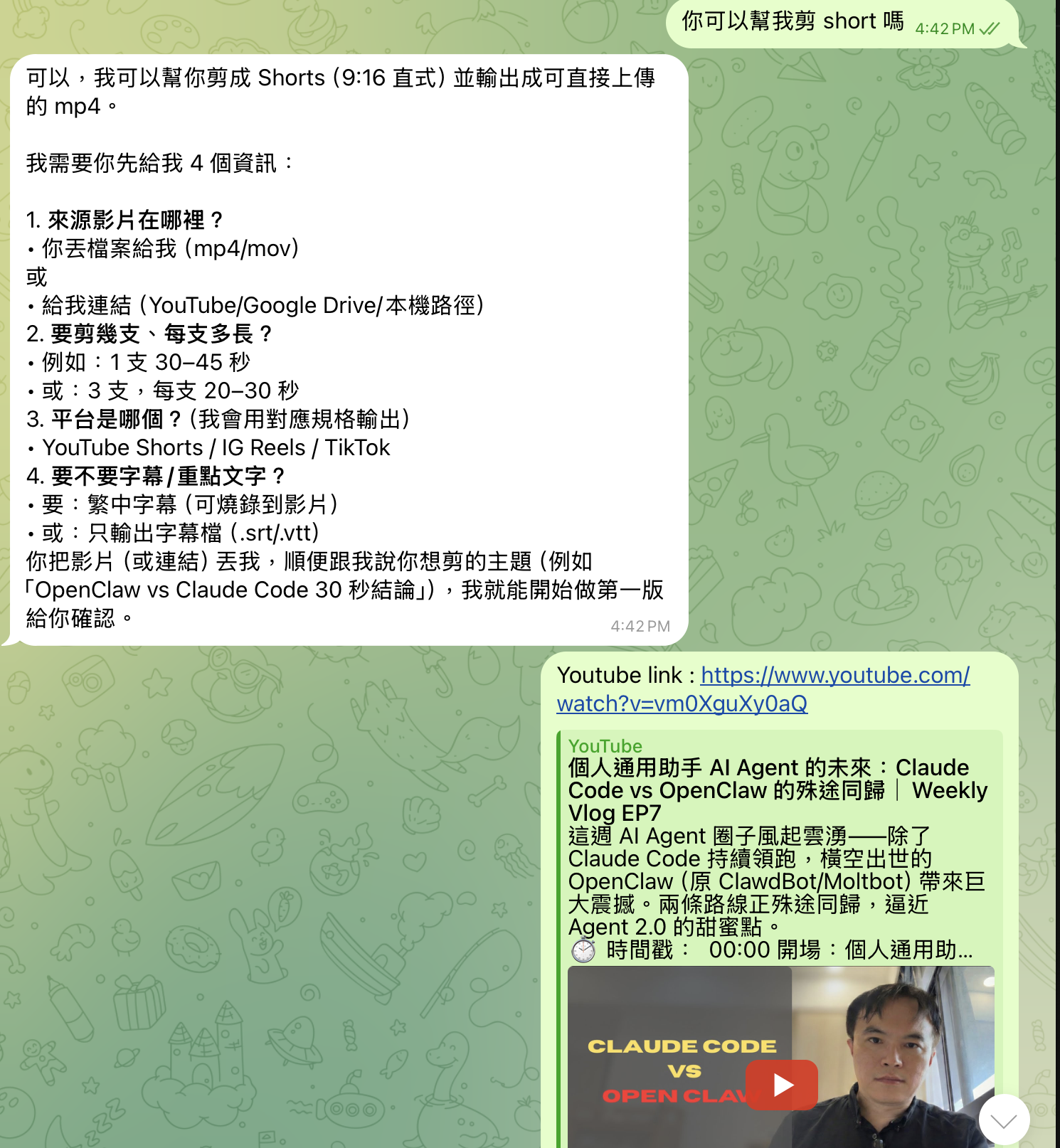
This was actually the first scenario that made me obsessed with using OpenClaw.
On Sunday I finished a weekly-summary YouTube video. While I was having dinner with relatives, I asked:
Me: OpenClaw, can you cut Shorts?
OpenClaw: Yes. I can cut it into Shorts (9:16 vertical) and export MP4s that can be uploaded directly, but you need to give me the file.
Me: Here’s the YouTube link.
OpenClaw: Sure. I’ve downloaded the 17:12 video and generated a timestamped transcript. From here, cutting Shorts will be fast.
I’ll first pick 3 segments that are best suited for Shorts (each has a clear “one-sentence hook”):
- The command line is the best GUI (why LLM + CLI is a match made in heaven)
- 00:12 → 01:00 (~48 seconds)
- Claude Code = Agent 1.5, OpenClaw = Agent 2.0 (what’s the difference?)
- 02:00 → 03:40 (~100 seconds; can be trimmed down to 45–60 seconds)
- OpenClaw’s security nightmare + a four-layer defense approach (most relatable)
- 05:00 → 07:10 (~130 seconds; can be trimmed down to 60 seconds)
Reply with two choices and I’ll export 9:16 MP4s ready for upload…
(I’ve already started converting the first one into 9:16 in the background; once you decide, I’ll cut the rest using the same template.)
The last sentence shocked me the most…
Without waiting for an explicit command, it understood what I wanted and just started working. A subordinate like that is truly rare.
Of course, the first attempt was terrible…
Me: This is awful. Redo #1. No subtitles. My original video is already vertical—just crop the center.
OpenClaw: Got it.
And the second attempt came out almost perfect… and even had subtitles.
Up to this point, I spent only 10 minutes—sitting at a hot-stir-fry table, staring at Telegram in disbelief.
Closing thoughts
The biggest shift for me over these days is this:
I no longer treat AI as a Q&A tool. I treat it as a semi-general, highly capable, proactive work assistant.
It’s genuinely proactive. Many times you still need to adjust and steer it.
But when you talk to a human subordinate, you also need a lot of back-and-forth.
I’ve already “raised” two agents now… and I plan to give them different responsibilities.
This is almost like having a digital-twin-level version of myself.
This is what an agent should feel like.
Side note: I dictated this entire post while walking to 7-11—sending voice messages to OpenClaw. It sent back a blog draft, I edited line by line, and only at the end did I type it on my Mac…
Further reading
- OpenClaw Memory System Deep Dive: SOUL.md, AGENTS.md, and the High Token Costs — a deep breakdown of OpenClaw’s architecture
- From $116M Retirement to Agentic Engineering: Peter Steinberger’s Philosophy — the people and philosophy behind OpenClaw
- Four-Layer Defense Hardening Guide — required reading on security
- Claude Code vs OpenClaw: Two Paths, Same Destination — comparing the two approaches